Share
How to share a medication schedule with a QR code or link
Caring for a parent, or handing over to a carer for the weekend? Send the whole prescription, with its medicines, times and doses, and they save it in DoseMate in a few taps.
Updated November 17, 2026 · Free on the App Store · iPhone, iPad and Apple Watch, iOS 15.6+
Why share a prescription
Typing a schedule into someone else's phone takes time, and one wrong time or dose matters. Sharing sends the prescription exactly as you set it up, so the other person gets the same reminders on their own iPhone.
Sharing is free and needs no account. It sends a copy: after it is saved, each phone keeps its own prescription, and changes on one do not reach the other.
What is shared and what is not
| Shared | Not shared |
|---|---|
| The prescription name and its tags | Your dose history (taken and missed) |
| Each medicine: name, icon, colour and unit | Your treatment courses |
| Times and the dose for each time | Calendar and backup settings |
| Frequency, meal timing and when to stop | |
| Dose window and notes |
The prescription travels inside the code or the link itself. When someone opens the link, the part that holds the prescription is not sent to the DoseMate website.
Share a prescription, step by step
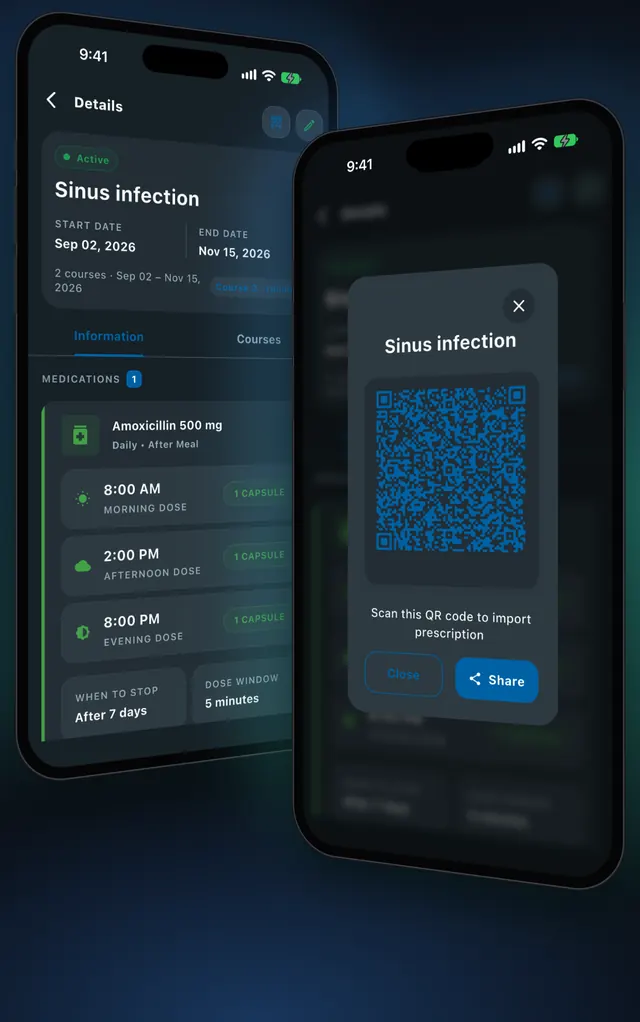
- Tap the Meds tab, then tap the prescription.
- Tap the QR icon (QR) at the top.
- If the person is next to you, let them scan the code: "Scan this QR code to import prescription".
- If they are far away, tap Share and choose Messages, Mail or another app. They receive a message with a link to tap.
- Tap Close when you are done.
Add a shared prescription, step by step
The person receiving it does this on their iPhone.
From a QR code
- In DoseMate, start a new prescription: Create a Prescription on an empty Home, or + on Meds.
- Tap Scan Prescription QR, and allow the camera if iOS asks.
- Point the camera at the code. If you have a photo or screenshot of the code instead, tap Import from Gallery and choose it.
- The form fills in. Check every medicine, time and dose.
- Tap Save.
From a link
- Tap the link in the message.
- With DoseMate installed, it opens the form already filled in. Check it and tap Save.
- Without DoseMate, the link opens a web page that shows the prescription and a link to the App Store. Install DoseMate, then tap the link again.
Nothing is added until the person taps Save.
Tips
- Check before saving. Compare the filled-in form with the pharmacy label or the prescriber's instructions.
- Moving to a new phone? Sharing copies one prescription without its history. To bring everything, use the encrypted backup: Back up your medication data.
- Need to show a doctor what was taken? That is the PDF report, not sharing: Medication log PDF for your doctor.

DoseMate — Medication Tracker & Schedule
Free · No account · iPhone, iPad and Apple Watch
Frequently asked questions
Is sharing free?
Yes. The QR code, the link and importing are free for everyone.
Can I see whether my parent took their doses?
No. Sharing sends a copy of the schedule only. Doses logged on their phone stay on their phone and are not sent back to you.
If I change the prescription, does their copy update?
No. Each phone keeps its own copy. Share it again after a change, and they add the new version.
Does the other person need an account?
No. DoseMate has no accounts. They only need DoseMate on their iPhone to save the prescription.
Can I share all my prescriptions at once?
No. Each QR code or link holds one prescription. Share each one from its own page.