Add Prescription
How to set up a pill reminder on iPhone
Add your prescription once, with each medicine, its times and its dose. DoseMate reminds you when a dose is due and keeps a record of what you took.
Updated November 17, 2026 · Free on the App Store · iPhone, iPad and Apple Watch, iOS 15.6+
Why use a medication reminder
Several medicines, different times, some before a meal and some at bedtime: it is easy to forget a dose or to wonder whether you already took it. DoseMate holds the plan for you. You enter each medicine as your prescriber wrote it, and the app sends a reminder at every dose time with the medicine, how much to take and when to take it in relation to meals.
Each dose you log as taken or missed is kept, so you can look back at the week and show it to your doctor. There is no account and no sign-in: your medicines and history stay on your iPhone.
Add a prescription, step by step
- Open DoseMate. The first time Home opens, iOS asks whether DoseMate may send notifications. Tap Allow, or reminders cannot reach you.
- On an empty Home, tap Create a Prescription. Later, tap + on the Meds tab.
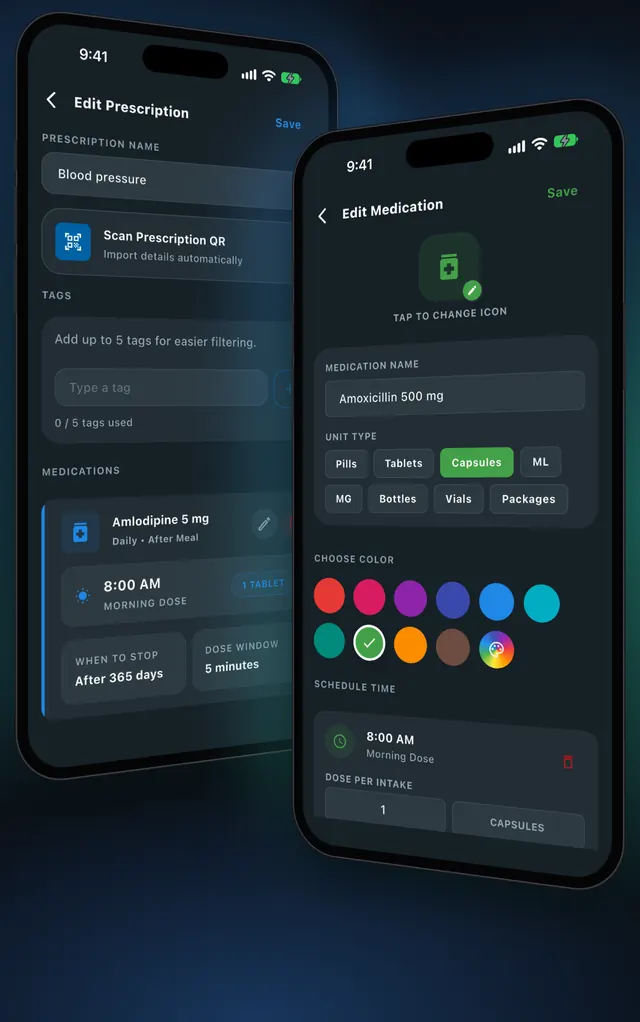
- On Add Prescription, type a Prescription Name, for example the illness or the doctor's name (up to 40 characters).
- Optional: add up to 5 Tags to find it more easily later.
- Check Active Since. It is today by default; tap Change to pick another start day.
- Under Medications, tap Add Medication.
Someone sent you a prescription as a QR code or link? Tap Scan Prescription QR on the same form instead: Share a medication schedule by QR code.
Add a medication and its times
- On Add Medication, type the Medication Name.
- Choose an icon and a colour, so you recognise the medicine at a glance.
- Under Unit Type, choose how you count it: Pills, Tablets, Capsules, ML, MG, Bottles, Vials or Packages.
- Under Schedule Time, tap Add Time for each time of day you take it.
- For each time, set the Dose per Intake. The morning and evening dose can differ.
- Under Meal Timing, choose Before Meal, After Meal or Before Bed.
- Under Frequency, choose how often (see the table below).
- Under When to Stop, choose when the medicine stops (see the table below). This is required.
- Under Dose Window Time, keep Use global setting or choose 5, 10, 15 or 20 minutes, or Custom.
- Optional: write Notes, such as "take with water" (up to 100 characters).
- Tap Save. Add the next medicine the same way.
- Back on the prescription, tap Save. Your reminders are now set.
| Choice | Options |
|---|---|
| Frequency | Daily; Interval (every few days, 2 by default); Specific Weekdays (the days you pick) |
| When to Stop | After Duration (days, weeks or months); After dose count; When inventory runs out (the pack you have) |
| Dose Window Time | How long after the dose time you can still log it as taken. 5 minutes unless you change it |
When inventory runs out only works out the last day from the amount you enter. DoseMate does not count your stock or remind you to refill.
Log a dose
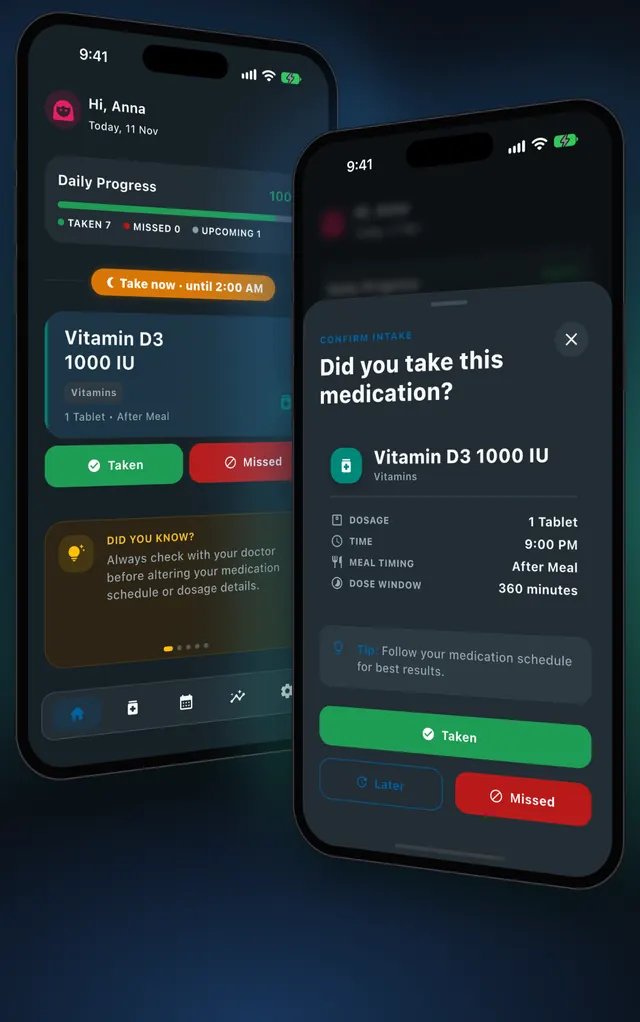
When a dose is due, the reminder shows the medicine and the dose. Doses due at the same minute come in one reminder. Press and hold it to tap Taken, or All taken for several at once.
In the app:
- Tap the dose on Home or Schedule.
- On Confirm intake, tap Taken if you took it, or Missed if you did not.
- Or tap Later to close the sheet and decide later. It does not snooze the reminder.
A dose shows Take Now from its time until the end of its dose window. If you have not logged it by then, it counts as missed. You can still correct it afterwards by tapping it. Before its time, a dose can only be viewed.
Tips
- Open DoseMate now and then. iOS keeps only a limited number of upcoming reminders for each app (64). DoseMate tops them up each time you open it, so with many doses a day, open it at least every few days.
- Change the default dose window once. Settings › Medication › Dose Window sets it for every medicine that uses the global setting.
- Need it to ring on silent? With Pro on iOS 26 or later, reminders can ring as an alarm: Medication alarm that rings on silent.
- Taking a course, like an antibiotic? Set When to Stop to the days or doses your prescriber gave you, then follow it in Track an antibiotic course.

DoseMate — Medication Tracker & Schedule
Free · No account · iPhone, iPad and Apple Watch
Frequently asked questions
Is the pill reminder free?
Yes. Reminders, logging, schedules and statistics are free. The free plan has one active prescription; you can add a second and a third, each after a short ad. Pro has no limit. A prescription can hold several medicines.
My reminders do not show. What do I check?
Open iOS Settings › Notifications › DoseMate and allow notifications. In DoseMate, check Settings › Notifications › Enable Notifications. Then open DoseMate once so it sets the upcoming reminders again.
Will reminders keep coming if I never open the app?
Not forever. iOS lets an app keep only a limited number of upcoming reminders, and DoseMate refills them when you open it. Opening it every few days is enough.
Can I snooze a reminder?
No. DoseMate has no snooze. Later only closes the sheet; the dose stays open until the end of its dose window.
Can I set a medicine to continue with no end date?
No. Every medicine needs When to Stop: a duration, a number of doses or the pack you have. For a long-term medicine, choose a long duration and start a new course when it ends.
Does DoseMate tell me what dose to take?
No. DoseMate reminds you of the plan you enter. Always follow your prescriber's or pharmacist's instructions, and ask them if you are unsure.