Backup
How to back up your medication data and restore it on a new iPhone
A lost, broken or new phone should not cost you months of dose history. DoseMate's encrypted backup and your recovery key bring your prescriptions back on another iPhone.
Updated November 17, 2026 · Free on the App Store · iPhone, iPad and Apple Watch, iOS 15.6+
Why back up your medication data
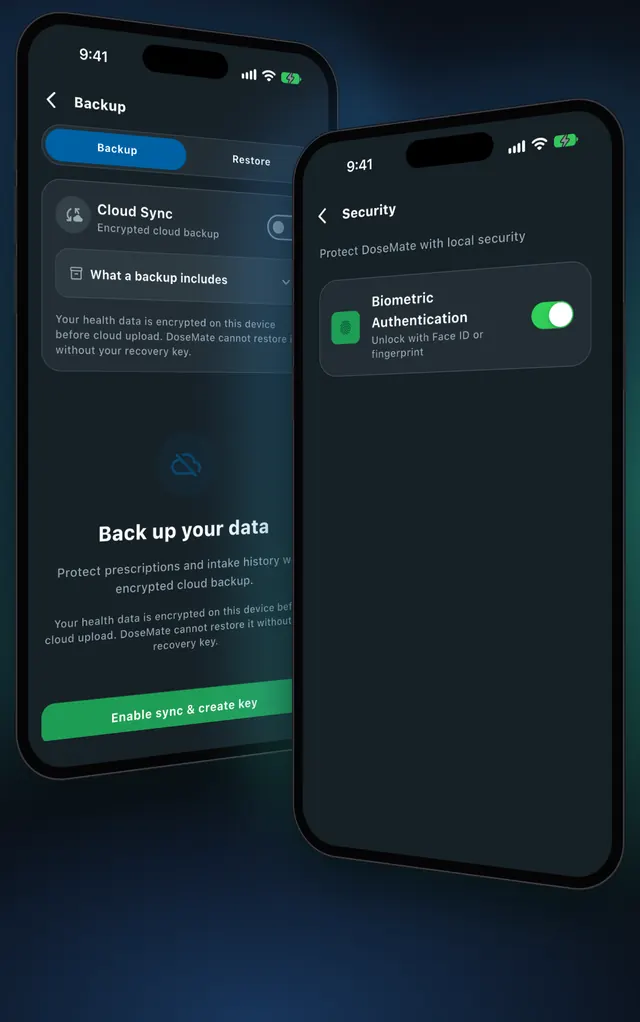
DoseMate has no account and no sign-in. Your prescriptions and dose history are kept on your iPhone. That keeps them private, but it also means they stay behind if the phone is lost, broken or replaced. The backup sends an encrypted copy to the cloud, and your Recovery Key is the only thing that opens it.
Making a backup needs DoseMate Pro. Restoring from a recovery key works on the free app too, so you can always get your data back.
How the encryption works, in plain words
- DoseMate encrypts your data on your iPhone before it leaves the phone. The locked copy is stored with Google Firebase, not in iCloud.
- The recovery key is what unlocks it. Without the key, nobody can open the backup: not DoseMate, not the server.
- Because of that, a lost recovery key cannot be recovered. If you lose the key, the backup is lost with it. Keep it somewhere safe.
Turn on the backup step by step
- In DoseMate, tap Settings, then under Sync tap Backup.
- Stay on the Backup tab and tap Enable sync & create key. Without Pro, the button says Upgrade to Pro.
- DoseMate creates your recovery key. It looks like
DM-XXXX-XXXX-XXXX. - Make sure Automatic Sync is on. DoseMate then backs up your changes by itself.
- Tap Back up now whenever you want a fresh copy, for example before you change phones. The screen shows your Last backup.
Keep your recovery key safe
Under Recovery key settings:
| Option | What it does |
|---|---|
| Link to cloud | Keeps the key in the iOS Keychain. If iCloud Keychain is on, it also reaches your other Apple devices, so a new iPhone can find it |
| View recovery key | Shows the key as Text or as a QR Code |
| Copy recovery key | Copies the key, for example into your password manager |
| Export QR Code | Shares the QR code as a picture, so you can save or print it |
| Replace recovery key | Makes a new key. The old key stops working at once. Use it if someone else has seen your key |
Never share the key. Anyone who has it can open your backup.
Restore on a new iPhone step by step
- Install DoseMate on the new iPhone and open it.
- Tap Settings, then Backup, then the Restore tab.
- If you used Link to cloud with iCloud Keychain, tap Look for a saved key. DoseMate finds the saved key and restores your data.
- Otherwise, under Enter recovery key manually, type the key into Recovery Key, or tap Scan QR code and scan the QR code you saved.
- Tap Manual restore, then Restore at Restore Data.
- Wait for Data restore successful!. Your prescriptions and history are back.
A restore replaces the data on that phone and creates a new recovery key. Save the new key, because the old one stops working.
What a backup brings back
| Comes back | Stays on the old phone |
|---|---|
| Prescriptions, treatment courses and your full dose history | The Face ID lock |
| Your name, birth year and avatar | Connected Google and Apple calendars |
| Theme, language, time format and text size | Apple Watch pairing |
| Reminders on or off, and your dose window |
After a restore, turn the lock on again (Lock DoseMate with Face ID), connect your calendars again (Sync doses to your calendar) and pair your watch.
Tips
- Two phones, one key. If another device backs up with the same key, automatic backup pauses on this one so the two do not overwrite each other. To make this phone the one that backs up, tap Claim & resume. Nothing is deleted: the other device's backup is merged in first.
- Back up before you switch. Tap Back up now on the old phone just before you move, so the newest doses are in the backup.
- Write the key down too. A copy on paper or in a password manager helps if you ever lose access to iCloud Keychain.

DoseMate — Medication Tracker & Schedule
Free · No account · iPhone, iPad and Apple Watch
Frequently asked questions
Is the backup free?
Making a backup needs DoseMate Pro. Restoring from a recovery key is free, but automatic backup stays off without Pro.
Is my backup stored in iCloud?
No. The encrypted backup is stored with Google Firebase. Only the recovery key can go to iCloud Keychain, and only if you turn on Link to cloud.
I lost my recovery key. Can DoseMate restore my data?
No. The backup is encrypted with your key, and DoseMate never has it. Without the key the backup cannot be opened. If your old phone still works, open DoseMate there and use View recovery key.
Do I need an account or an email?
No. DoseMate has no account and no sign-in. The recovery key takes the place of a password.
Can I delete my backup from the cloud?
There is no button that deletes the cloud backup. Replace recovery key deletes the old backup and starts a new one with the new key.
Can I move my data to an Android phone?
No. DoseMate is for iPhone and iPad.