Security
How to lock your medication app with Face ID or Touch ID
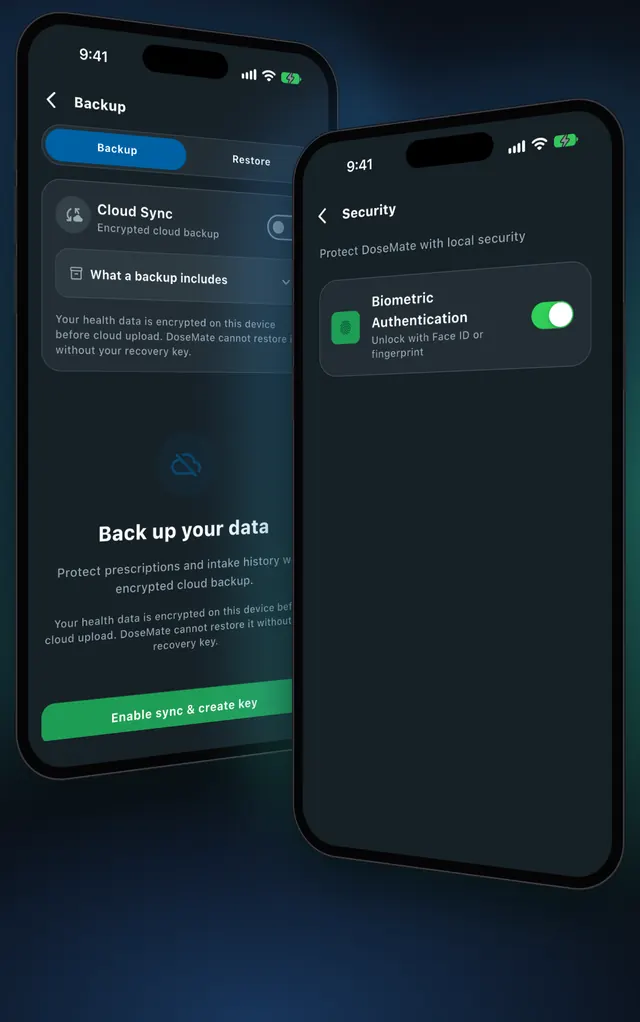
Your medicines are your business. Turn on the free Face ID or Touch ID lock, and DoseMate asks for your face or fingerprint before it shows anything.
Updated November 17, 2026 · Free on the App Store · iPhone, iPad and Apple Watch, iOS 15.6+
Why lock your medication app
A phone gets handed to a child, shown to a friend or left on a desk at work. Your prescriptions, notes and dose history say a lot about your health. With the lock on, DoseMate stays closed until you look at the phone or touch the sensor. The check is done by iOS on your iPhone. Nothing about your face or fingerprint reaches DoseMate.
The lock is free.
Turn on Face ID or Touch ID step by step
- Make sure Face ID or Touch ID is set up on your iPhone or iPad, in iOS Settings › Face ID & Passcode (or Touch ID & Passcode).
- In DoseMate, tap Settings.
- Under INTERFACE, tap Security.
- Turn on Biometric Authentication.
- Look at your phone or touch the sensor when iOS asks. The lock turns on only after this check succeeds. If it fails, you see Biometric authentication failed and the switch stays off.
To turn the lock off, go back to Security and turn off Biometric Authentication.
What happens when the lock is on
| Moment | What you see |
|---|---|
| You open DoseMate | The lock screen with Unlock DoseMate. Use Face ID or Touch ID to open the app |
| Face ID or Touch ID does not work | iOS offers your device passcode instead |
| You switch to another app for under 30 seconds | DoseMate opens again without asking |
| You leave DoseMate for 30 seconds or more | It locks again |
| You look at the app switcher | DoseMate's picture is covered, so your doses are not shown |
Hide medicine names on the Lock Screen
The app lock does not cover notifications. A DoseMate reminder shows the medicine name in its title, and iOS can show that on the Lock Screen. To hide it:
- Open iOS Settings › Notifications.
- Tap Show Previews and choose When Unlocked or Never.
- To change only DoseMate, tap DoseMate in the list under Settings › Notifications, then Show Previews, and choose there.
With When Unlocked, the reminder still arrives on time, but the medicine name shows only after Face ID or Touch ID unlocks the phone.
Tips
- The lock does not come back with a restore. It is not part of a backup. After you restore on a new iPhone, turn it on again: Back up and restore your medication data.
- Keep a screen lock on the phone. If you remove Face ID, Touch ID and the passcode from the device, DoseMate cannot lock either and tells you so.

DoseMate — Medication Tracker & Schedule
Free · No account · iPhone, iPad and Apple Watch
Frequently asked questions
Is the Face ID lock free?
Yes. The Face ID and Touch ID lock is part of the free app.
Can I set a separate PIN for DoseMate?
No. DoseMate uses Face ID or Touch ID, with your device passcode as the fallback. It has no PIN of its own.
Does the lock hide my reminders?
No. Reminders still arrive, and iOS may show the medicine name on the Lock Screen. Set Show Previews to When Unlocked in iOS Settings › Notifications to hide it.
Does DoseMate see my face or fingerprint?
No. iOS checks your face or fingerprint and only tells DoseMate whether it matched.
Does the lock encrypt my data?
No. The lock stops other people from opening the app on your phone. Your data is protected by iOS on the device; only the backup is encrypted by DoseMate.
What if Face ID does not recognise me?
When Face ID or Touch ID fails, iOS lets you open DoseMate with your device passcode instead.