Calendar
How to add your medication schedule to Google or Apple Calendar
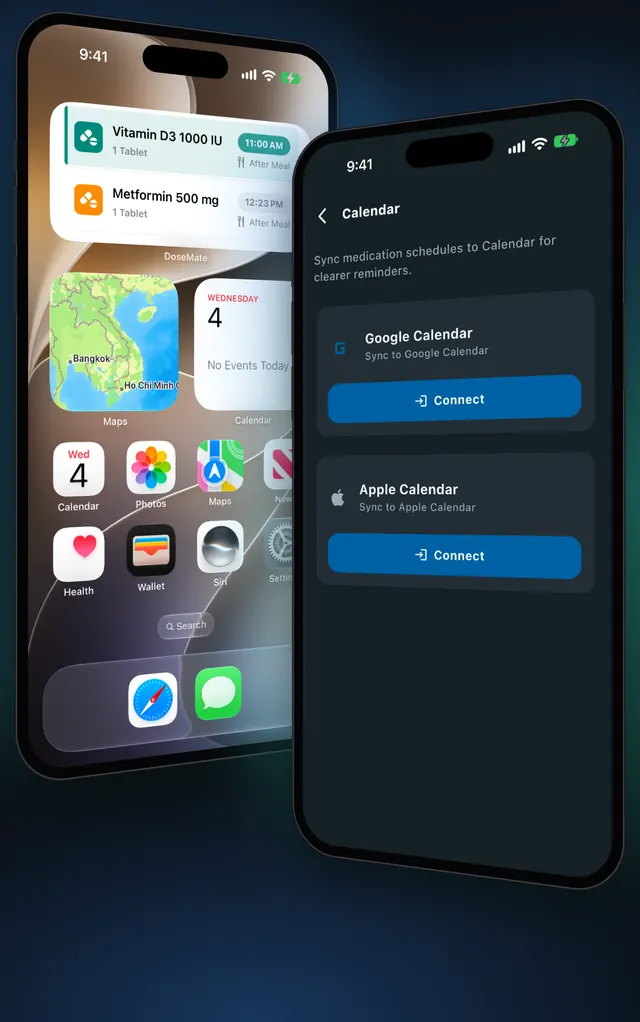
Plan your day around your medicines. DoseMate Pro copies each dose time into Google Calendar or Apple Calendar, so your doses sit next to your appointments.
Updated November 17, 2026 · Free on the App Store · iPhone, iPad and Apple Watch, iOS 15.6+
Why put your medicines in your calendar
Many people run their day from a calendar. When your doses are there too, you see at a glance whether a dose falls during a meeting, a trip or a meal out, and a carer who shares the calendar can see it as well. DoseMate keeps its reminders either way. The calendar is an extra view of the same schedule.
Calendar sync is part of DoseMate Pro. You can connect Google Calendar, Apple Calendar or both.
Connect a calendar step by step
- In DoseMate, tap Settings, then under Sync tap Calendar. Without Pro, this opens the Pro page instead.
- Choose a calendar:
- - Google Calendar: tap Connect, pick your Google account and allow DoseMate to manage its own calendar. The card then shows your Google email.
- - Apple Calendar: tap Connect and allow DoseMate to use your calendars when iOS asks.
- Turn on Auto Sync to update the calendar each time you change a prescription.
- On the calendar's card, tap Sync to copy all your prescriptions now. At Sync Calendar, tap Continue. You see Calendar sync successful! when it is done.
- Open Google Calendar or the Calendar app. Your doses are in a new calendar named DoseMate Calendar.
Choose which prescriptions go to the calendar
Every prescription is synced by default. To keep one out of your calendar:
- Add or edit the prescription.
- In the prescription's Sync section, turn off the Calendar switch.
- Save the prescription. DoseMate stops adding events for it.
- If its events are already in your calendar, go to Calendar, tap Delete, then Sync. The calendar is rebuilt without that prescription.
What each calendar event contains
| Part | What you see |
|---|---|
| Calendar | A separate calendar named DoseMate Calendar, so you can hide or show it in one tap |
| Time | A 15-minute event at each dose time, repeating on your schedule until the treatment ends |
| Title | A pill emoji, the medicine name, the dose with its unit, and the meal timing, for example "💊 Vitamin D3 - 1 Tablet - After Meal" |
| Description | The prescription name, the medicine's notes, and a link that opens DoseMate |
| Alerts | An alert at the dose time and one 5 minutes before |
Privacy note: the medicine name and your notes are copied into the event. Anyone who can see that calendar, such as people you share it with, can read them. If your notes are private, keep them short or leave that prescription out of the calendar.
Stop syncing or disconnect
- In Calendar, tap Delete on the calendar's card. At Remove Calendar Sync, tap Delete. This removes the DoseMate events from that calendar.
- Turn off Auto Sync so new events are not added.
- For Google, tap Disconnect, then Delete to confirm. Disconnecting alone does not remove events already in your calendar, so delete them first.
- For Apple Calendar there is no disconnect button. To take away DoseMate's access, go to iOS Settings › Privacy & Security › Calendars › DoseMate.
Tips
- Expect two alerts. DoseMate already reminds you, and the calendar events have their own alerts. If that is too much, keep only the prescriptions you want in the calendar.
- Clearing all data clears the calendar too. CRITICAL ACTIONS › Clear Database in DoseMate removes your prescriptions, reminders and their synced calendar events.
- Connections stay on this phone. A backup does not bring back connected calendars. After moving to a new iPhone, connect them again: Back up and restore your medication data.

DoseMate — Medication Tracker & Schedule
Free · No account · iPhone, iPad and Apple Watch
Frequently asked questions
Is calendar sync free?
No. Calendar sync needs DoseMate Pro. Reminders, logging and the Home Screen widget are free.
Can I log a dose from the calendar?
No. The calendar only shows your schedule. Log doses in DoseMate or from its reminder. The link in the event description opens DoseMate.
Will DoseMate change my other events?
No. DoseMate writes only to its own calendar, DoseMate Calendar. With Google, it asks to manage only the calendars it creates. Google's screen also lists DoseMate's own app-data folder in Google Drive; on iPhone DoseMate stores nothing there.
Does it work with Outlook or other calendars?
No. DoseMate connects to Google Calendar and Apple Calendar only.
What happens when a treatment ends?
The events stop at the end of the treatment you set. If you start a new course or change a prescription, tap Sync to bring the calendar up to date.