Dose Schedule
How to add a medication widget to your iPhone Home Screen
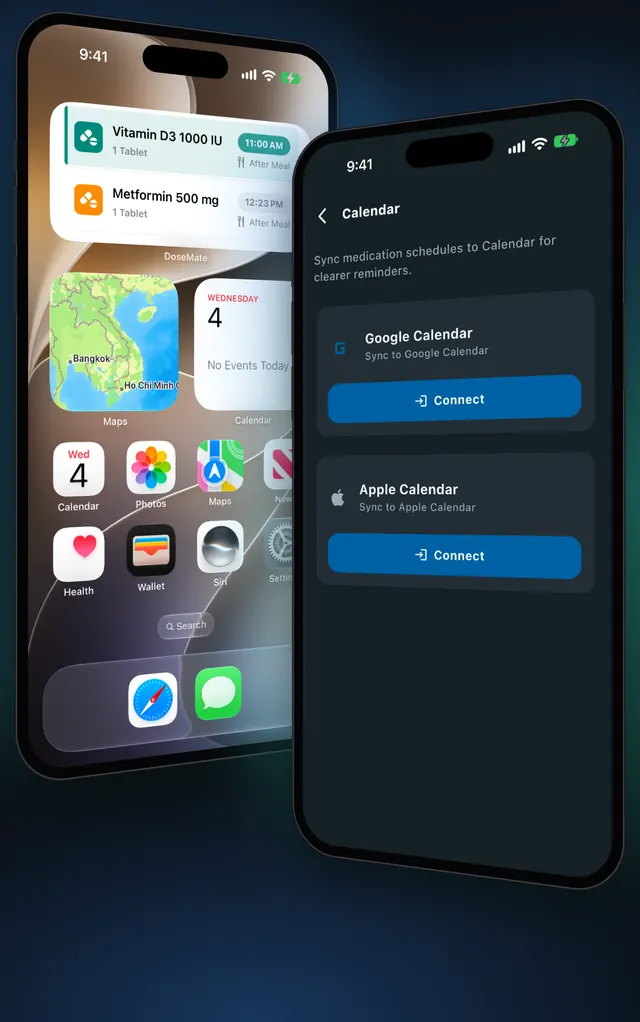
See what to take next every time you unlock your phone. The free DoseMate widget shows your next dose, or the rest of today's doses, right on the Home Screen.
Updated November 17, 2026 · Free on the App Store · iPhone, iPad and Apple Watch, iOS 15.6+
Why put your doses on the Home Screen
A reminder comes once, and it is easy to swipe away. A widget stays in sight. DoseMate's widget, called Dose Schedule, shows the doses you still have to take today, with the time, the dose and whether to take it before or after a meal. It is free, and it reads the doses you set up in the app: How to set up a pill reminder on iPhone.
Add the widget step by step
- Open DoseMate once after you add or change a prescription, so the widget has today's doses.
- Go to your iPhone's Home Screen. Touch and hold an empty spot until the apps jiggle.
- Tap Edit at the top left, then tap Add Widget. On older iOS versions, tap the + button at the top left instead.
- Search for DoseMate and tap it.
- Swipe to choose a size: small, medium or large.
- Tap Add Widget, place it where you want, then tap Done.
What each size shows
| Size | What it shows |
|---|---|
| Small | The next dose: the medicine, the dose, the time, the meal timing, and a label: Upcoming, or In Window when it is time to take it |
| Medium | The next two of today's remaining doses, each with its time, dose and meal timing |
| Large | Today's date, the number of doses left today, and the next four remaining doses |
When nothing is left for today, the widget says No medications scheduled today.
Tips
- Tap to log. The widget is not interactive: a tap opens DoseMate. Log the dose there, or from the reminder notification. How to set up a pill reminder on iPhone shows how.
- Pick the size for your day. Small suits one or two medicines a day. Medium or large helps when you take several medicines at different times.
- Add it twice. You can place more than one size, for example a small one on your first Home Screen and a large one on another page.
- On your wrist too. The Apple Watch app shows your next dose and today's progress: Medication reminders on Apple Watch.

DoseMate — Medication Tracker & Schedule
Free · No account · iPhone, iPad and Apple Watch
Frequently asked questions
Is the widget free?
Yes. The Home Screen widget is part of the free app. Pro is not needed.
Can I mark a dose as taken from the widget?
No. The widget only shows your doses. Tapping it opens DoseMate, where you log the dose as taken or missed. You can also log it from the reminder notification.
Is there a Lock Screen widget?
No. DoseMate has a Home Screen widget only, in small, medium and large sizes.
Why does the widget show old doses?
The widget shows the doses DoseMate last saved for it. Open DoseMate after you add, change or end a prescription, and the widget updates.
Can I choose which medicine the widget shows?
No. The widget always shows your next remaining doses for today, in time order.